Converting VS2005 projects to VS2010
Jump to navigation
Jump to search
SIMbox content projects (LOC, COC, OOC, extensions) were initially developed only in Visual Studio 2005. Support for Visual Studio 2010 was added to SIMbox from version 5.6, creating the need to be able to convert existing projects to Visual Studio 2010.
This is done in 2 steps:
- Convert the Visual Studio solution to 2010 using the Visual Studio conversion wizard.
- Converting the SIMbox content using the SIMbox upgrade tool. You can upgrade the entire solution at once or a single project at a time.
Note: If you run the upgrade a second time on a project it will cause no harm except that it will override the backup created by the first upgrade.
Preparing for upgrade:
- Before attempting to upgrade your solution, make sure that the file system locations for all projects are writable so the Visual Studio conversion will be able to create the new project files.
- Make sure that the SIMbox SDK for Visual Studio 2010 is installed on your computer. You can install the SDK during KnowBook Client installation or add it to an existing installation.
a. During install – Select the ‘Install SDK’ checkbox.
b. Post install – run [INSTALL SOURCE DIR]\KnowBook Client\Resources\SDK 2010\setup.exe
To convert your existing SIMbox VS2005 projects to VS2010:
- Open the solution (created using VS2005) with VS2010. Visual Studio will open the conversion wizard:

- Complete the conversion process through the wizard. This will upgrade the solution and project files for VS2010. In the conversion summary dialog, make sure that all projects were converted successfully before moving on.
- You may get the following error if you try to build the project:
The project you are building is being linked with an incompatible versions of CRT libraries. Run the project update tool from the SIMbox SDK menu to fix the referenced directories.
To overcome this problem you also need need to upgrade the SIMbox projects and Visual Studio will prompt you to reload the solution projects because they have changed.
Tip: If you have a large number of projects in your solution, you may want to install a package called VS Commands 2010 which lets you reload all projects in one click rather than confirm each reload separately.
In the Visual Studio main menu, choose SIMbox SDK -> Update Solution (or highlight a project and choose Update Project if you want to upgrade one project at a time). - Read the following message and confirm that you want to run the upgrade. The upgrade process will run in the background and update all the solution's project (vcxproj) files:
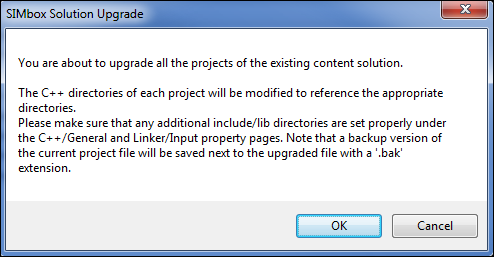
- If you haven't installed VS Commands package, VS2010 will ask you to reload each project in the solution:
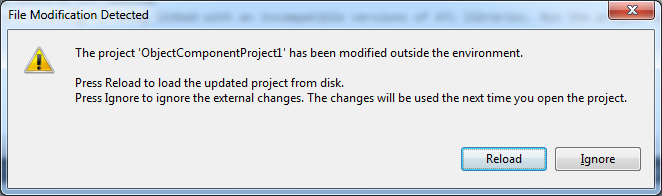
- Reload the project and you will be able to build it without any errors.


